Parent guide • Minecraft Modding • Java Edition
Minecraft Java vs. Bedrock: Which Edition Does Your Child Need for Modding?
Which edition of Minecraft does your child need for modding with MCreator? Here’s how to check before beginning a class.
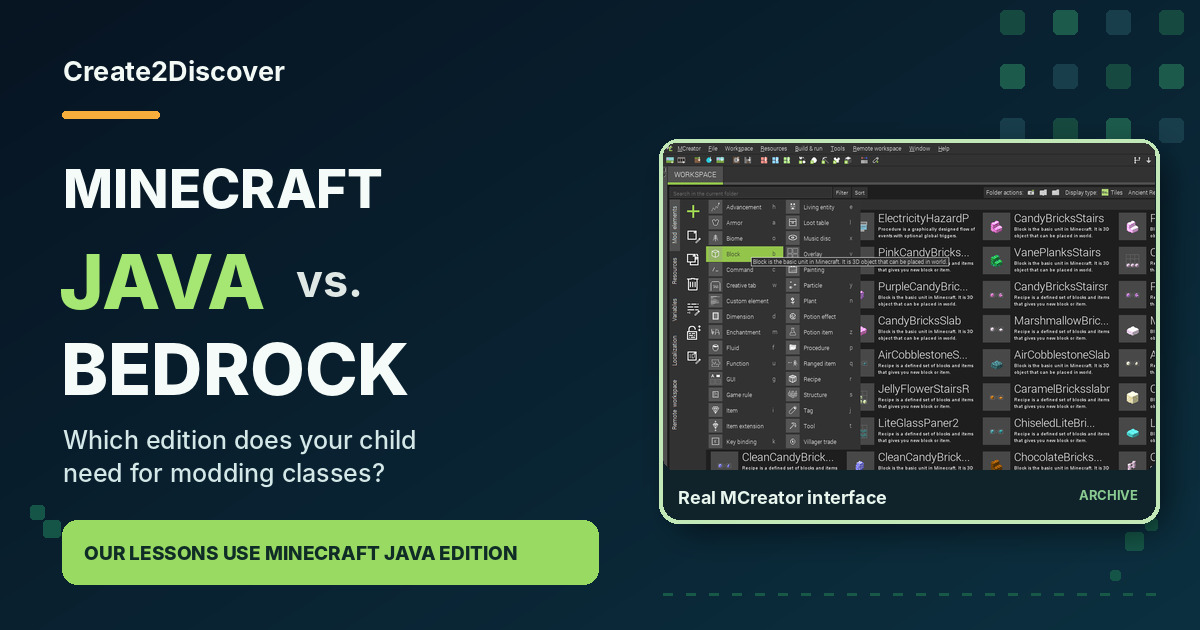
Your child loves Minecraft and wants to start making their own blocks, tools, or creatures. But before choosing a Minecraft modding class, there’s an important question: Does your family have the right edition of Minecraft?
Minecraft has two main editions, Java and Bedrock. Both allow kids to build and explore, but they don’t use the same tools or project formats.
For Create2Discover’s current Java-based Minecraft Modding programs, students use Minecraft Java Edition with MCreator on a compatible Windows PC or Mac.
What’s the difference between Java and Bedrock?
| Minecraft Java Edition | Minecraft Bedrock Edition |
|---|---|
| Runs on Windows, Mac and Linux. | Runs on Windows, consoles, phones, tablets and other supported devices. |
| Supports Java mods using compatible modding frameworks. | Uses add-ons and other Bedrock customization features. |
| Used for Create2Discover’s current Java-based modding lessons. | Cannot open those Java lesson projects. |
Neither edition is necessarily better for every family. The important question is what your child wants to do.
If your child primarily wants to play Minecraft with friends on a console or tablet, Bedrock may be the edition they use every day. If they want to follow our guided lessons to create and test Java mods, Minecraft Java Edition is the one they need.
Can MCreator work with Bedrock Edition?
Yes. MCreator offers tools for creating both Java Edition mods and Bedrock Edition add-ons. However, these are different kinds of projects. The available features, workspace configuration, and testing processes can differ.
Our current Java-based Minecraft Modding programs teach students to create and test projects using the Java Edition workflow. Having MCreator installed does not automatically make Java lesson projects compatible with Bedrock.
This is why it’s important to check the specific class requirements rather than assuming that any version of Minecraft will work.
What equipment does my child need?
- A compatible Windows PC or Mac. Chromebooks, tablets, and game consoles are not supported for our current course workflow. Check MCreator’s current system requirements before installing.
- Minecraft Java Edition. Families need access to a licensed copy. For Windows, the standard Java & Bedrock Edition PC package includes Java Edition; a Deluxe package is not needed for our lessons. On a Mac, families use the Java Edition installation for macOS.
- MCreator. This free visual mod-development program lets students create custom Minecraft content and program behaviors. Follow the course-specific setup instructions instead of automatically installing or upgrading to a different release.
- Blockbench, when needed. This free modeling tool is used in selected lessons to design custom Minecraft mobs and models.
A stable internet connection is needed for software setup, and a parent or guardian should assist with installation.
What does learning Minecraft modding actually look like?
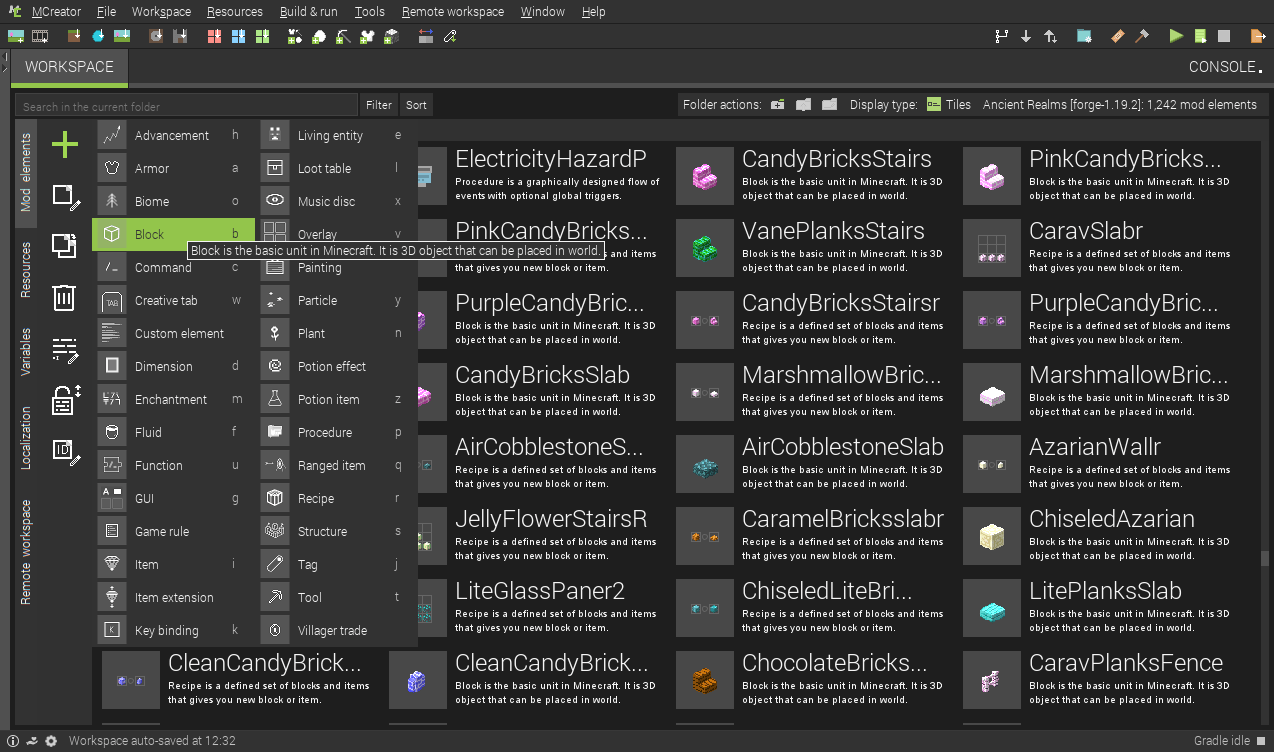
A beginner might start by creating a custom block.
First, the student creates a new block in MCreator and chooses its appearance and properties. They then build and test the project, launch the appropriate development test environment, and see whether the block works as expected.
Later projects introduce behaviors that respond to events, conditions, and procedures. For example, a custom block might trigger an action when a player interacts with it.
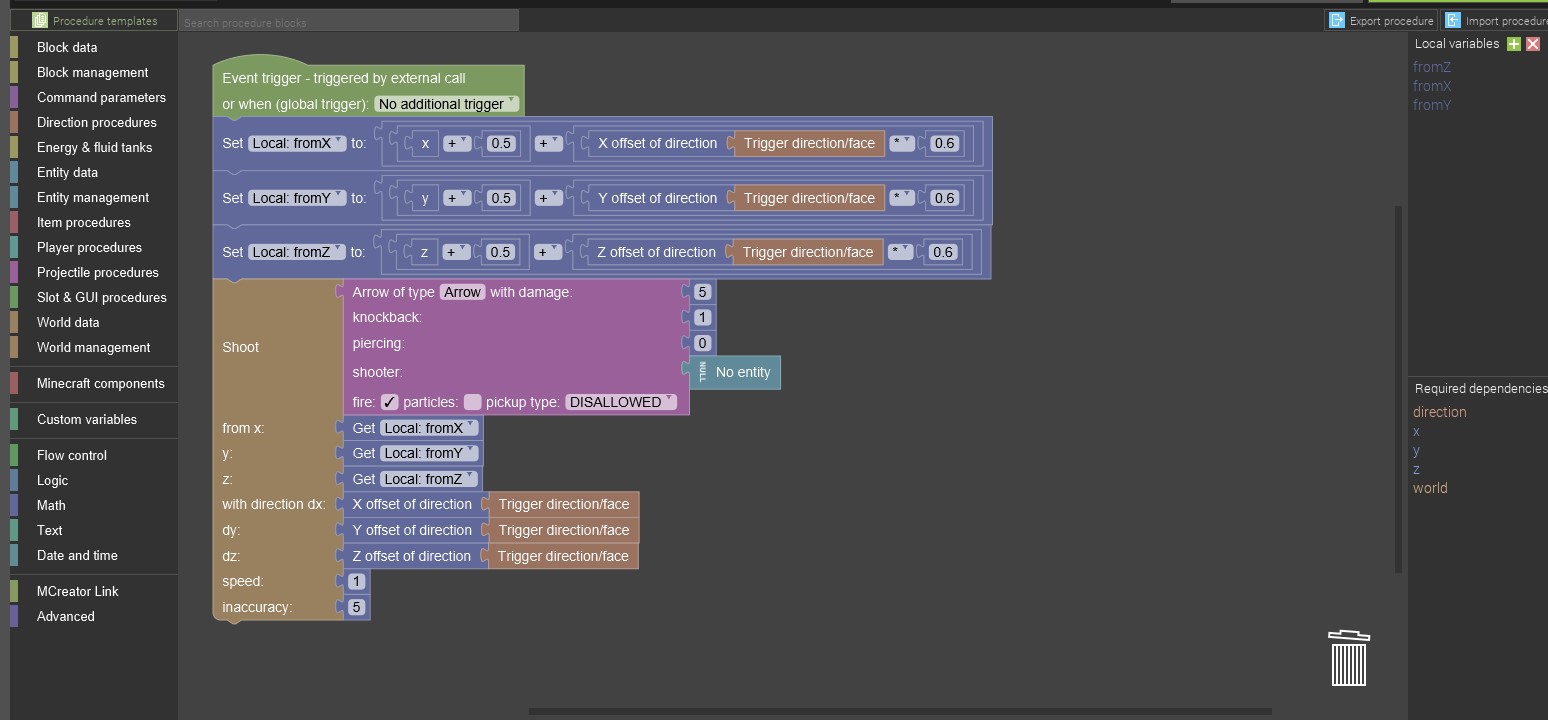
Students learn to think through what they want a program to do, test the results, identify problems, and make improvements.
This is an introduction to programming logic through hands-on creation, not simply downloading someone else’s Minecraft mods.
Frequently asked questions
My child has Minecraft on Nintendo Switch, Xbox, or a tablet. Can they use that?
Not for our current Java Edition modding lessons. They will need access to Minecraft Java Edition on a compatible computer.
Is Minecraft Education Edition the same as Java Edition?
No. Minecraft Education is a separate edition and does not replace the Java Edition required for this workflow.
Does my child need previous coding experience?
Our beginner MCreator instruction introduces the tools and programming concepts step by step. Students can begin without prior coding experience.
Should my child install the newest version of MCreator?
Not necessarily. MCreator supports different Minecraft versions and modding frameworks across its releases. Families should use the setup instructions provided for their specific course and avoid changing versions midway through a project without guidance.
Do students need to join public Minecraft servers?
No. Students build and test their modding projects in their own development environment.
Help your child get started with Minecraft modding
If your family has the right software and your child wants to learn how Minecraft mods work, a simple custom-block project is a useful place to begin.
You can explore our beginner MCreator tutorial to see the kinds of projects students create.
For more structured instruction, explore the beginner self-paced Minecraft Modding course or live one-on-one Minecraft Modding tutoring.
The goal is to help students understand how their creations work, and develop the skills to build, test, and improve their programs.
Try four free game-creation lessons
Parents and guardians can get four free game-creation lessons covering Roblox building, Roblox scripting, Minecraft modding, and MCreator procedures. An adult should review the email consent terms before subscribing.
Setup references: Official Minecraft edition comparison; MCreator system requirements; MCreator generator compatibility. Follow the course’s version-specific setup instructions.